
Music
Play music in your server - queue, player panel, effects and DJ roles.
Replace [prefix] with your server's prefix.
serenity plays music straight into your voice channels - from a search, a Spotify link, a Deezer or SoundCloud track, a whole playlist or an attachment you dropped into Discord. There's a queue, a button panel, audio effects and a DJ role for the servers that need one.
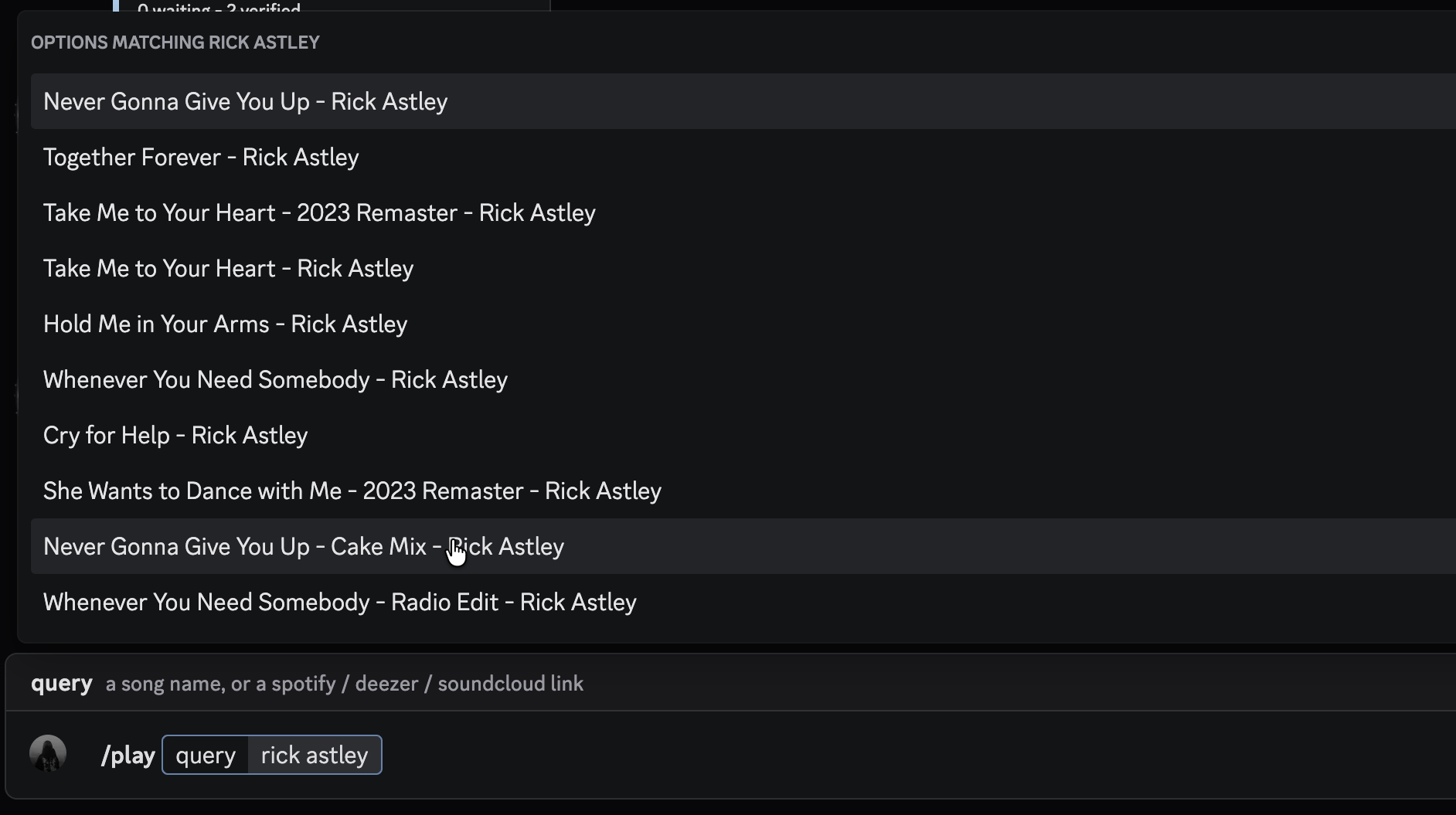
Music works especially well as slash commands - /play suggests tracks while you type.
Playing something
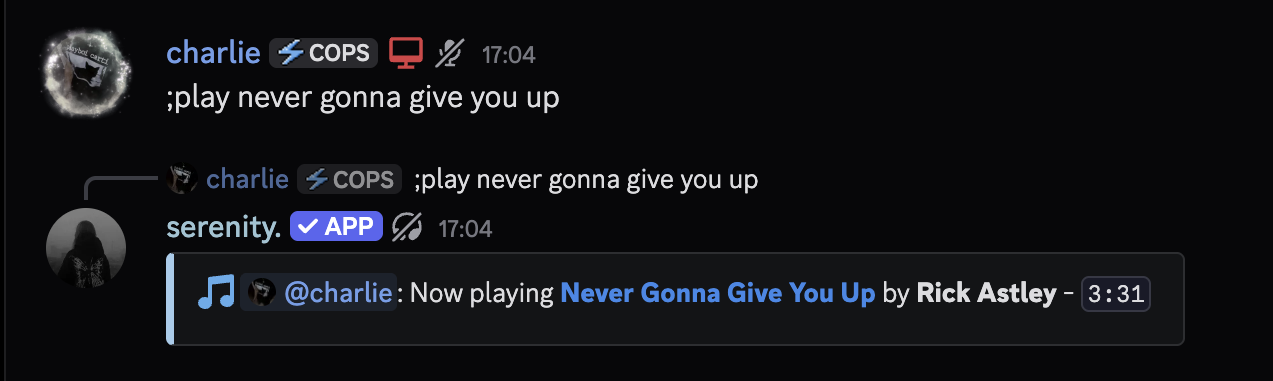
Join a voice channel and run [prefix]play with whatever you have: a song name, or a link. serenity joins you, starts playing and adds everything after that to the queue.
// Syntax
[prefix]play [query]

// Example
;play never gonna give you up
;play https://open.spotify.com/track/4PTG3Z6ehGkBFwjybzWkR8
Which links work
| Source | What you get |
|---|---|
| Spotify | Tracks, albums and playlists |
| Deezer | Tracks and playlists |
| SoundCloud | Tracks and playlists |
| Bandcamp | Tracks and albums |
| YouTube | Videos and playlists |
| Apple Music | Tracks and playlists |
| Discord attachments | Audio files you uploaded to Discord |
Any other link is refused. serenity only accepts streaming service links and Discord attachments - arbitrary URLs never reach the audio node.
Spotify and Apple Music don't hand out audio, only information about a track. serenity looks the same recording up on a source that does stream - matched by its ISRC, not by its title, so you get the actual song instead of a sped-up edit or a live version with the same name. The title, artist and artwork you see stay the ones you asked for.
Playlists
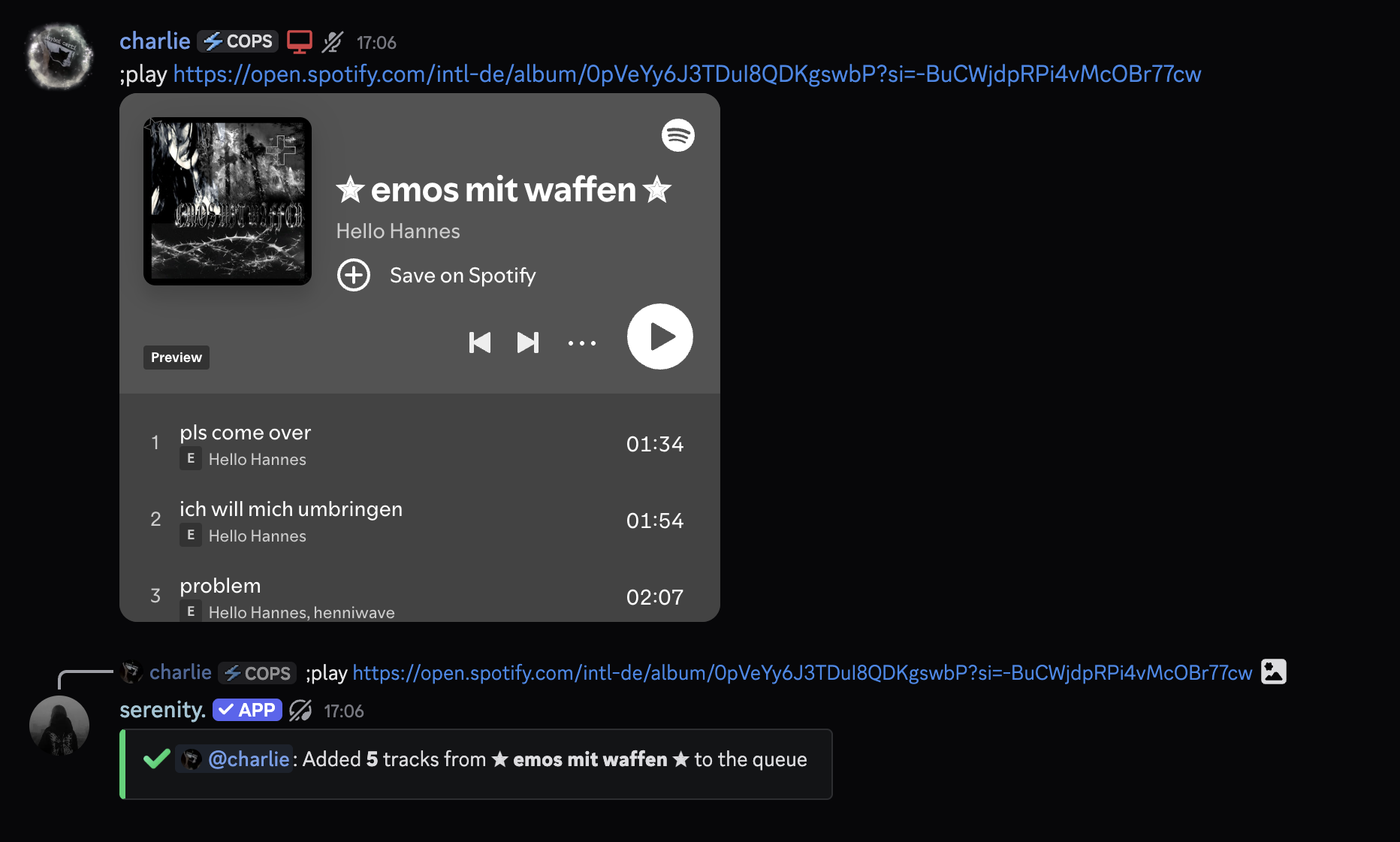
Paste a playlist link and the whole thing goes into the queue at once, up to your server's queue limit.
// Syntax
[prefix]play [playlist url]

// Example
;play https://open.spotify.com/playlist/37i9dQZF1DXcBWIGoYBM5M
Controlling playback
| Command | What it does |
|---|---|
[prefix]pause | Pause the current track |
[prefix]resume | Carry on where you paused |
[prefix]skip | Skip to the next track in the queue |
[prefix]seek [position] | Jump to a position, like 1:30 or 90 |
[prefix]volume [amount] | Set the volume between 0 and 150 |
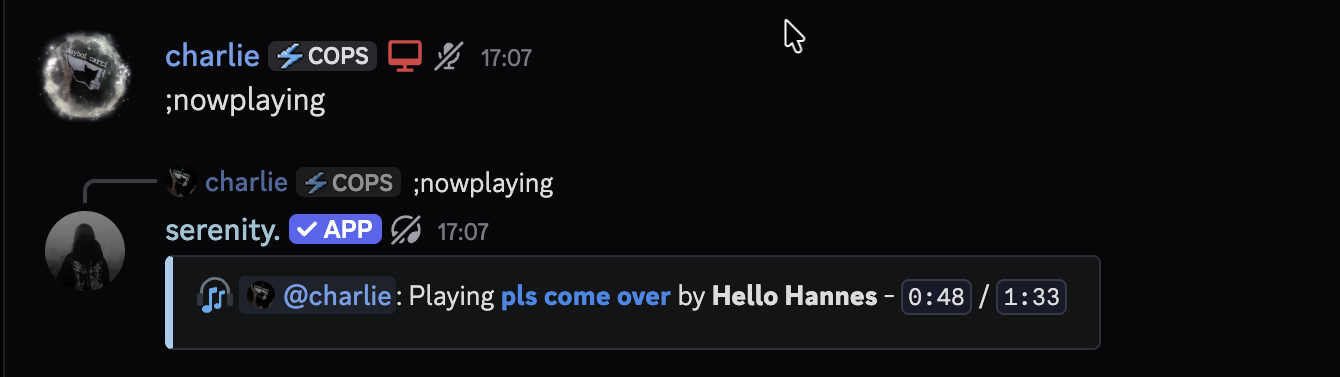
[prefix]nowplaying | Show what's playing and how far in it is |
[prefix]disconnect | Stop, clear the queue and leave the channel |
// Syntax
[prefix]seek [position]

// Example
;seek 1:30
[prefix]volume without a number tells you the current volume instead of changing it. [prefix]disconnect also answers to stop and dc.
Skipping the last track in the queue disconnects serenity for you - there's nothing left to play, so it doesn't sit in the channel doing nothing.
The Player Panel
If you'd rather click than type, [prefix]player posts a panel with the artwork, a progress bar and buttons for everything above.
// Syntax
[prefix]player

// Example
;player
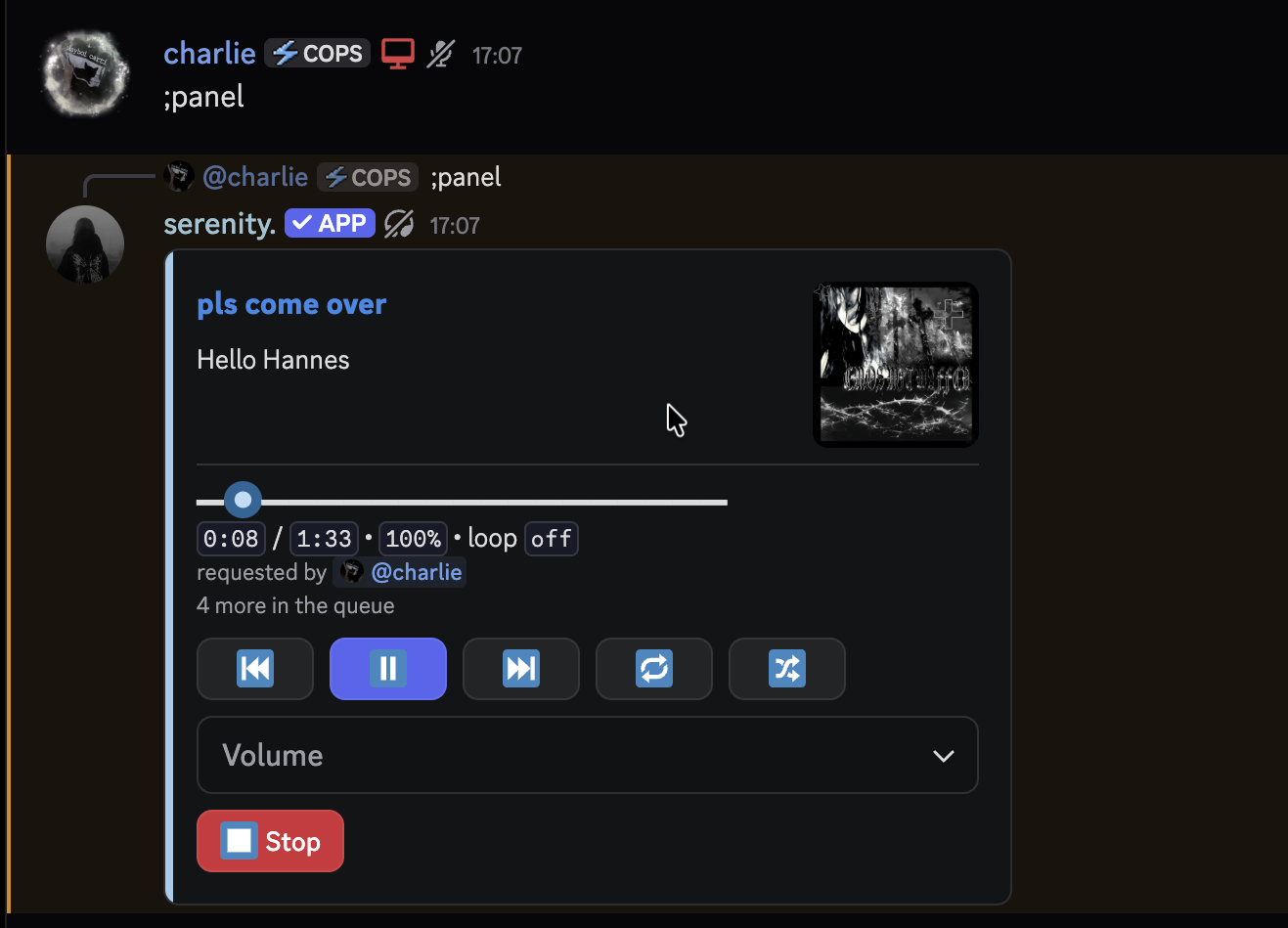
Previous, play/pause, skip
The transport buttons. The play button flips to pause and back with the state.Loop
Cycles through off, track and queue - it lights up green while looping.Shuffle
Shuffles everything still in the queue.Volume
The dropdown jumps between 0% and 150%.Stop
Clears the queue and leaves the channel.
There's one panel per server. Posting a new one greys the old one out, so you never end up with two panels disagreeing about what's playing. The panel also greys out when playback stops.
The buttons follow the same rules as the commands - you have to be in the voice channel, and the DJ role applies to the panel just like it applies to [prefix]skip.
The Queue
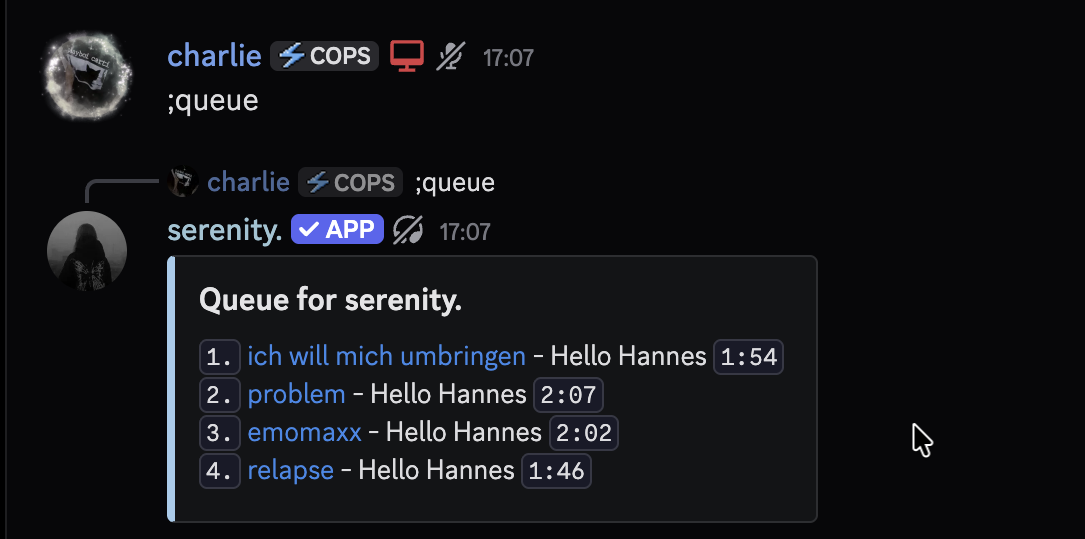
[prefix]queue lists everything waiting, ten per page, with who added it.
// Syntax
[prefix]queue

// Example
;queue
Managing the Queue
// Syntax
[prefix]queue shuffle
[prefix]queue remove [position]
[prefix]queue clear

// Example
;queue shuffle
;queue remove 3
;queue clear
queue clear empties the queue but leaves the current track playing. To stop everything, use [prefix]disconnect.
Looping
// Syntax
[prefix]loop [track|queue|off]

// Example
;loop track
Audio Effects
Change how the music sounds without restarting the track.
// Syntax
[prefix]effects [nightcore|vaporwave|bassboost|8d|off]

// Example
;effects nightcore
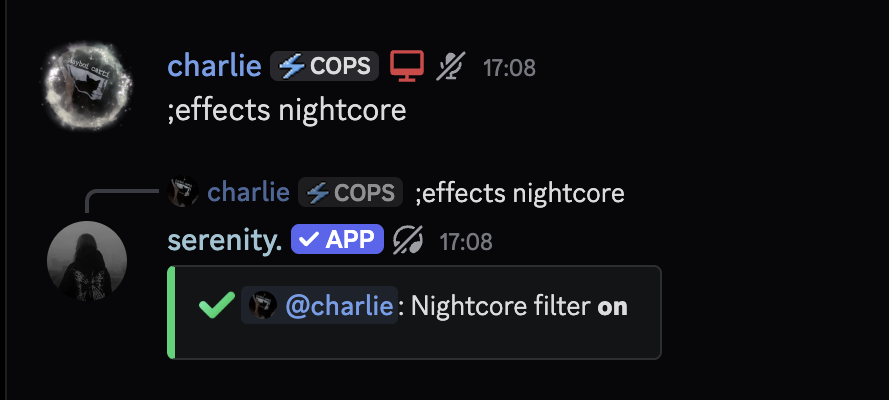
The effect applies to the track that's already playing - no restart, no jump back to the beginning.
Most Played Tracks
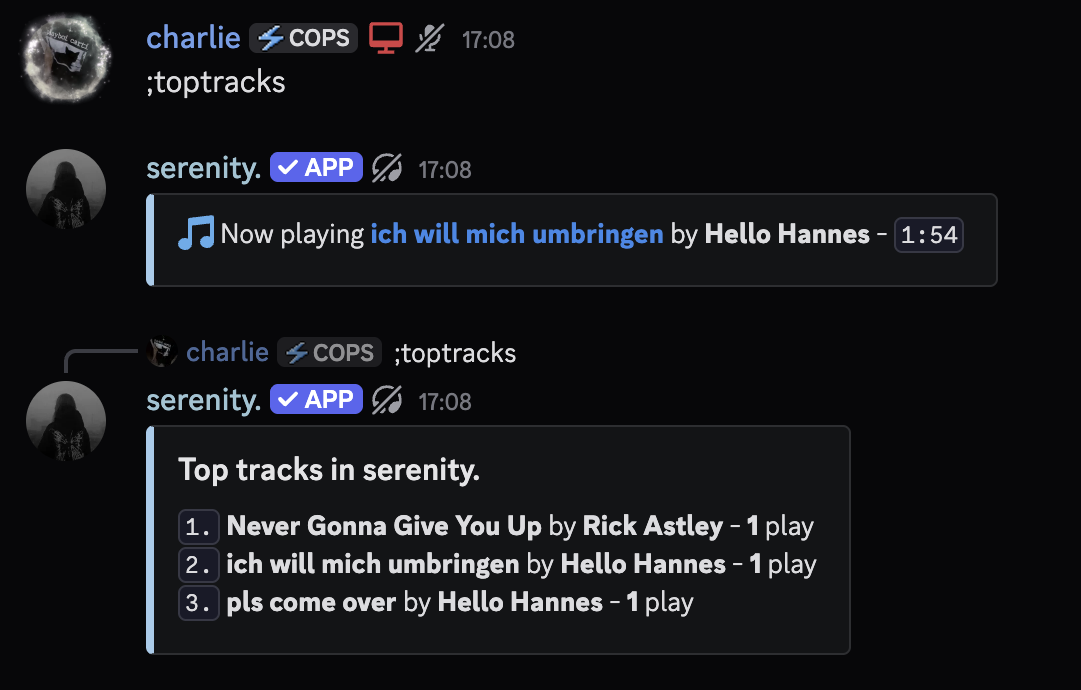
serenity keeps a play history per server, so you can see what your members actually listen to.
// Syntax
[prefix]toptracks

// Example
;toptracks
Server Settings
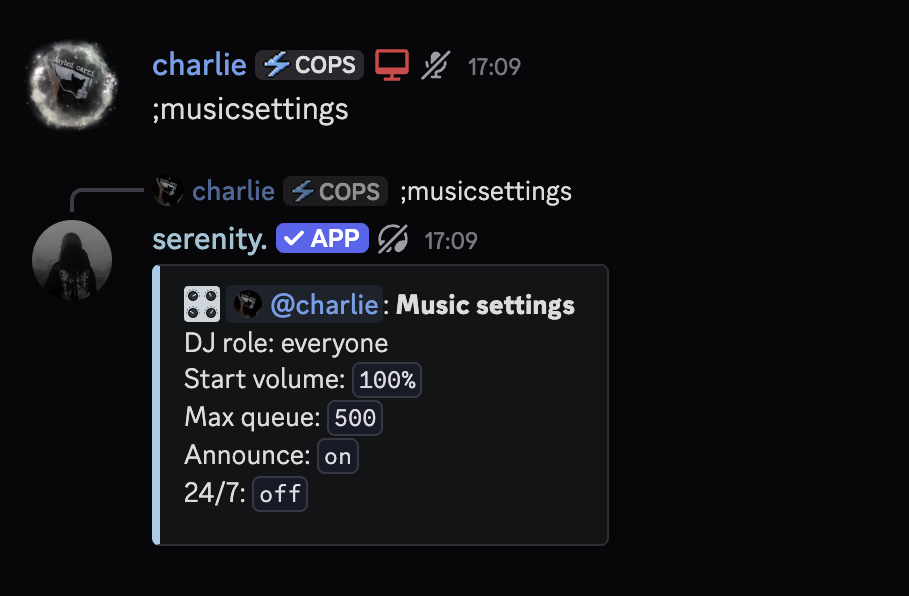
Everything under [prefix]musicsettings needs Manage Server. Run it without a subcommand to see the whole configuration.
// Syntax
[prefix]musicsettings

// Example
;musicsettings
The DJ Role
Without a DJ role, everyone can control playback. Set one and the commands that affect everybody else - skip, pause, volume, loop, effects, the queue commands, disconnect - are limited to members who have it.
// Syntax
[prefix]musicsettings djrole [role]

// Example
;musicsettings djrole @DJ
Anyone with Manage Server always passes, so you can't lock yourself out of your own settings. And someone alone in the channel with serenity can always control it - asking for a role when nobody else is listening is just friction.
Run the command without a role to clear it and let everyone control the music again.
[prefix]play is deliberately not DJ-only. Anyone can add to the queue - only the commands that affect what everyone else is hearing are gated.
Starting Volume
New players start at 100%. Change what they start at with:
// Syntax
[prefix]musicsettings volume [amount]

// Example
;musicsettings volume 80
Anything from 0 to 150. This is the volume a fresh player starts at - [prefix]volume still changes the session that's running.
Queue Limit
How many tracks the queue may hold. The default is 500.
// Syntax
[prefix]musicsettings maxqueue [amount]

// Example
;musicsettings maxqueue 200
Between 1 and 5000. Playlists are cut off at the limit rather than rejected.
Now Playing Announcements
By default serenity posts a short now playing message in the channel you started playback from, every time the track changes. On a busy queue that's a lot of messages.
// Syntax
[prefix]musicsettings announce [on|off]

// Example
;musicsettings announce off
24/7 Mode
Normally serenity leaves once the channel has been empty for a while. With 24/7 on, it stays.
// Syntax
[prefix]musicsettings 24/7 [on|off]

// Example
;musicsettings 24/7 on
24/7 keeps serenity in the channel through idle time, but it doesn't keep playing on its own - once the queue is empty, there's nothing left to play.
Good to know
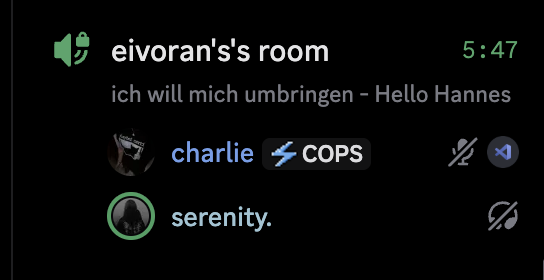
serenity puts the current track into the voice channel's status, so you can see what's playing from the channel list without opening it. This needs Manage Channels - without it, everything else still works.
Last edited