
Topics
Split tickets into Support, Reports, Applications - each with its own staff, category and limits.
Replace [prefix] with your server's prefix.
A topic is a reason to open a ticket. Once you have more than one, members pick which they need and serenity routes the ticket accordingly - different staff, different category, its own opening message.
Without topics, every ticket is the same kind of ticket. That's fine for a small server.
Creating a Topic
// Syntax
[prefix]ticket topics
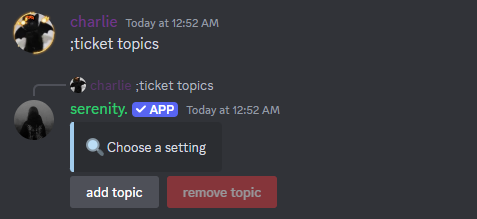
Press add topic and fill in the popup. Name and description are what members see; the emoji shows up next to it in the dropdown.
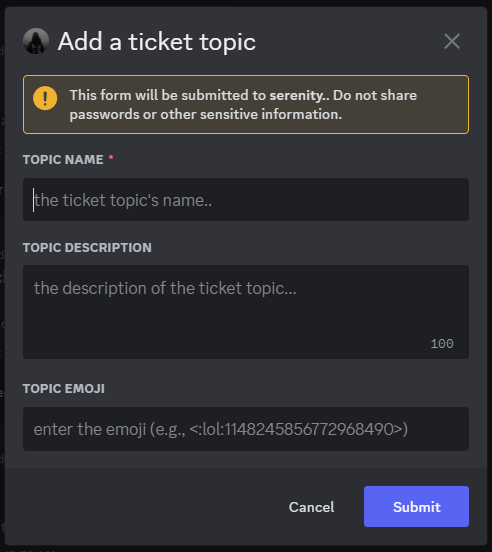
Discord caps a dropdown at 25 options, so that's your topic limit too.
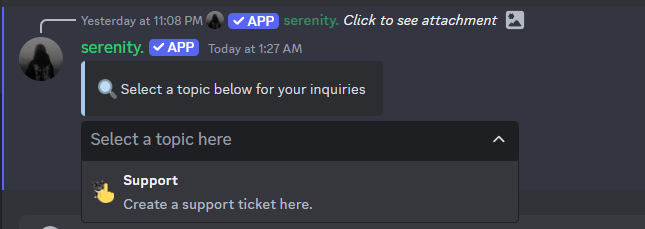
Once a topic exists, members get asked which one they want:
Emoji Markdown
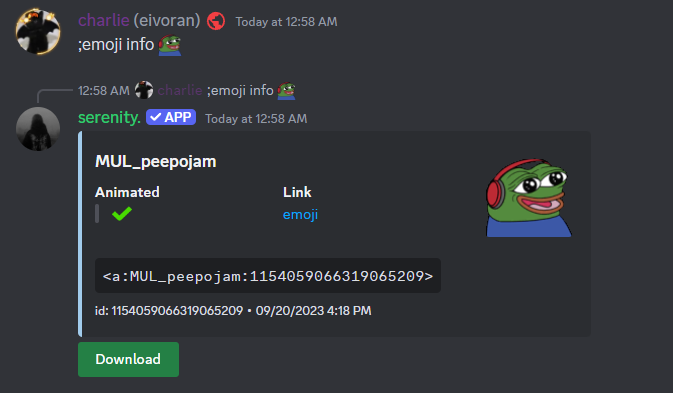
For a custom server emoji the form needs its full markdown, not just the name. Two ways to get it:
- Type a backslash
\before the emoji in Discord and send it. - Run
[prefix]emoji info [emoji].

Editing a Topic
// Syntax
[prefix]ticket topic name [topic] [new_name]
[prefix]ticket topic description [topic] [new_description]
[prefix]ticket topic emoji [topic] [new_emoji]

// Example
;ticket topic name Support Help
;ticket topic description Support Click here if something's broken
;ticket topic emoji Support 💀
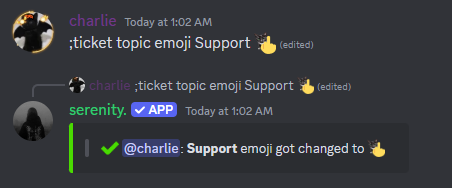
For a topic whose name has multiple words, wrap it in quotes - ;ticket topic emoji "Bug Reports" 🐛 - or use the slash command.
Any of these re-renders your panels automatically, so a dropdown panel always shows the current names and emojis.
Per-Topic Settings
Each of these overrides the server-wide setting for that one topic.
Its Own Support Role
// Syntax
[prefix]ticket topic support [topic] [roles]

// Example
;ticket topic support Applications @recruiters
Only that role gets pinged and gets access, instead of your general support role.
Its Own Category
// Syntax
[prefix]ticket topic category [topic] [category]

// Example
;ticket topic category Reports Report Tickets
Its Own Opening Message
// Syntax
[prefix]ticket topic opened [topic] [code]

// Example
;ticket topic opened Reports {embed}$v{title: Report received}$v{description: Please include message links and screenshots.}
Same scripting as the server-wide opening message, including $v{slot: controls}.
How Many At Once
By default a member can have one open ticket per topic. Raise it:
// Syntax
[prefix]ticket topic limit [topic] [number]

// Example
;ticket topic limit Support 3
The cap is 4. And if you've switched on [prefix]ticket settings singleticket, that wins - one open ticket across everything, whatever the per-topic limits say.
The Channel Name
// Syntax
[prefix]ticket topic format [topic] [format]

// Example
;ticket topic format Support {topic.emoji}-{user}
| Placeholder | Becomes |
|---|---|
{user} | The member's username |
{user.displayname} | Their display name |
{user.id} | Their user ID |
{topic} | The topic name |
{topic.emoji} | The topic emoji |
{count} | Total tickets ever, zero-padded |
{topic.count} | Tickets for this topic, zero-padded |
Use none to go back to the default topic-username.
Which Panel It Appears On
By default a topic appears on every panel. Pin it to one and it appears only there:
// Syntax
[prefix]ticket topic panel [topic] [panel]

// Example
;ticket topic panel Applications applications

// Back to every panel
;ticket topic panel Applications none
A topic can only belong to one panel at a time. Covered in full, with a worked example, under Panels.
If a panel ends up offering exactly one topic, its button opens that ticket straight away instead of asking - a dropdown with one option in it is just a click in the way.
Hiding a Topic Temporarily
Don't delete a topic you'll want back - switch it off. It disappears from the dropdown and existing tickets are unaffected.
// Syntax
[prefix]ticket status disable [topic]

// Example
;ticket status disable Applications
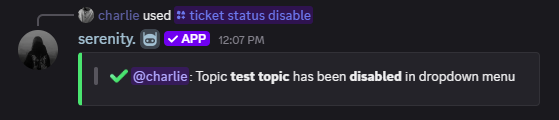
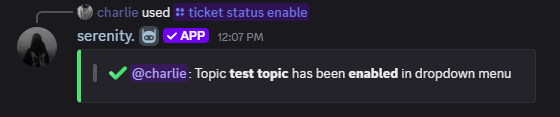
And back on:
// Syntax
[prefix]ticket status enable [topic]

// Example
;ticket status enable Applications
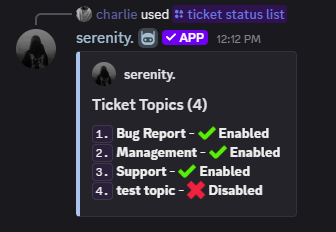
Seeing What's On
// Syntax
[prefix]ticket status list
Deleting a Topic
Run [prefix]ticket topics again, press remove topic and pick it from the dropdown.
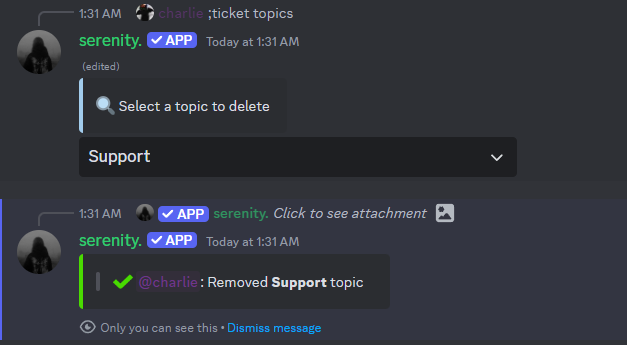
This also deletes that topic's questions. Tickets already open under it stay open.
Moving a Ticket to Another Topic
Run this inside a ticket to move it - it renames the channel, moves it to the new topic's category and swaps in the new support role.
// Syntax
[prefix]ticket topic move [topic]

// Example
;ticket topic move Reports
Last edited