
Panels
The message members press to open a ticket - designing it, restyling it, and running several at once.
Replace [prefix] with your server's prefix.
A panel is the message with the Create Ticket button on it. You can have as many as you like, in as many channels as you like.
Sending One
// Syntax
[prefix]ticket send [#channel] (code)

// Example
;ticket send #support
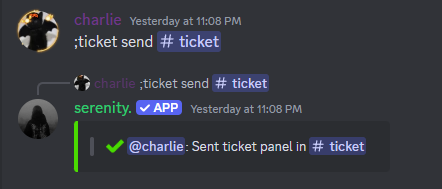
serenity asks you to confirm first, because this always creates a new panel. Each one gets a name - panel-1, panel-2 and so on - and serenity tells you which it used. That name is how you refer to it in every other command on this page.
To change how a panel you already have looks, use ticket panel edit, not ticket send. Sending again just leaves you with two panels.
Changing the Design
ticket send and ticket panel edit both take an embed script, so a panel can look like anything.
// Syntax
[prefix]ticket panel edit [panel] (code)

// Example
;ticket panel edit panel-1 {embed}$v{title: Support}$v{description: Press below and we'll be right with you}
Leave the code out to go back to the default design.
Where the Button Goes
By default the button is added at the end of the message. Write $v{slot: ticket} in your script and it goes exactly there instead:
;ticket panel edit panel-1 {components}$v{container: color:#181a14}$v{text: ### Support}$v{separator}$v{slot: ticket}$v{/container}
This is the only way to get the button inside a Components V2 container - a V2 message is nothing but components, so there's no space underneath to hang one off. Read Slots for the full picture.
Put the slot in a {section} and the button sits beside the text rather than under it:
$v{section: Need a hand? && slot: ticket}
Editing vs Reposting
Editing a message leaves Discord's (edited) marker on it. Add --resend and serenity posts a clean message and deletes the old one - same panel, same name, new link.
;ticket panel edit panel-1 --resend {embed}$v{title: Support}
Switching a panel between an {embed} script and a {components} script always reposts, flag or not. Discord won't let an existing message turn into a Components V2 one.
Button or Dropdown
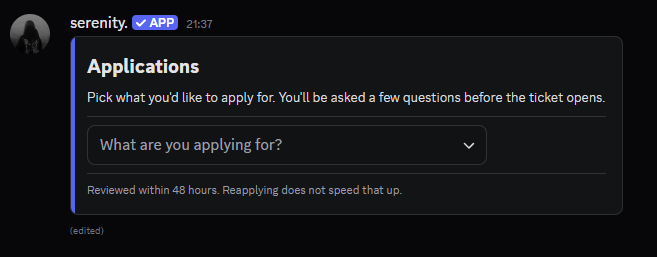
By default a member presses Create Ticket and then picks a topic. You can skip the button and put the topic dropdown straight on the panel instead - per panel, so a support panel can keep its button while an application panel goes straight to a dropdown.
A panel that offers exactly one topic never asks. Pressing the button opens that ticket immediately - no dropdown with a single option in it - and the topic still applies in full: its category, support role, questions and limit.
// Syntax
[prefix]ticket panel mode [panel] [button|dropdown]

// Example
;ticket panel mode applications dropdown
The Default For New Panels
A panel with no style of its own follows the server default:
// Syntax
[prefix]ticket settings mode [button|dropdown]

// Example
;ticket settings mode button
Put a panel back on that default with [prefix]ticket panel mode [panel] default.
Dropdown mode needs at least one topic that panel actually offers, so serenity refuses the switch until there is one. A topic pinned to a different panel doesn't count. See Topics.
Your scripts never change either way: they all just say $v{slot: ticket}, and what lands there follows the panel's style. Panels re-render themselves the moment you switch.
If a script puts the slot inside a {section} and that panel switches to dropdown mode, the dropdown can't be a section accessory - serenity keeps your text and drops the dropdown into its own row underneath, so the panel keeps working.
Restyling the Button and Dropdown
// The emoji on the Create Ticket button
;ticket settings emoji 🎫

// The grey prompt inside the topic dropdown
;ticket settings placeholder What can we help you with?
Run either with nothing (or none) to restore the default. Placeholders are capped at 150 characters, and the placeholder applies to both dropdowns - the one on the panel and the one behind the button.
Custom server emojis work, as long as you pass the full markdown like <:support:1148245856772968490>. [prefix]emoji info [emoji] gives you that.
Running Several Panels
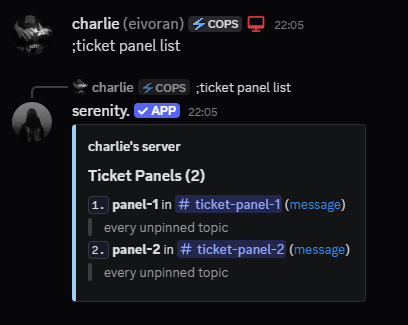
One in #support, one in #applications, one somewhere staff-only. By default every panel offers every enabled topic.
Listing Them
// Syntax
[prefix]ticket panel list
Giving Each Panel Its Own Topics
Pin a topic to a panel and it stops showing up on the others:
// Syntax
[prefix]ticket topic panel [topic] [panel]

// Example
;ticket topic panel Applications applications
A topic belongs to one panel at a time. Pinning one that already belongs elsewhere is refused rather than silently moved - release it first.
To put it back on every panel:
;ticket topic panel Applications none
Topics you never pin stay on every panel, which is why an existing setup keeps behaving exactly as it did.
A Worked Example
Two panels, each with its own topics and its own style:
// send them
;ticket send #support
;ticket send #applications

// give them real names
;ticket panel rename panel-1 support
;ticket panel rename panel-2 applications

// split the topics
;ticket topic panel "Bug Report" support
;ticket topic panel Question support
;ticket topic panel Moderator applications
;ticket topic panel "Event Host" applications

// let the application panel show its dropdown straight away
;ticket panel mode applications dropdown
#support now offers Bug Report and Question behind its button; #applications shows Moderator and Event Host in a dropdown. Neither panel shows the other's topics.
Pin every topic somewhere and each panel only offers its own. Leave one unpinned and it shows on both - useful for a catch-all "Other" topic.
Renaming
panel-1 works but isn't memorable. The pinned topics come along:
// Syntax
[prefix]ticket panel rename [panel] [new_name]

// Example
;ticket panel rename panel-2 applications
Deleting
Deletes the message and forgets the panel. Topics pinned to it go back to showing on every panel.
// Syntax
[prefix]ticket panel delete [panel]

// Example
;ticket panel delete panel-2
Checking a Panel's Script
// Syntax
[prefix]ticket panel script [panel]
Forcing a Re-render
serenity re-renders your panels itself whenever a topic changes. If one ever looks stale, push it:
// Syntax
[prefix]ticket panel refresh
Panel commands are prefix-only. ticket is already at Discord's limit of 25 slash subcommands, so these have no / version.
Last edited